Thursday, February 14, 2013

Illustration Friday - Storm

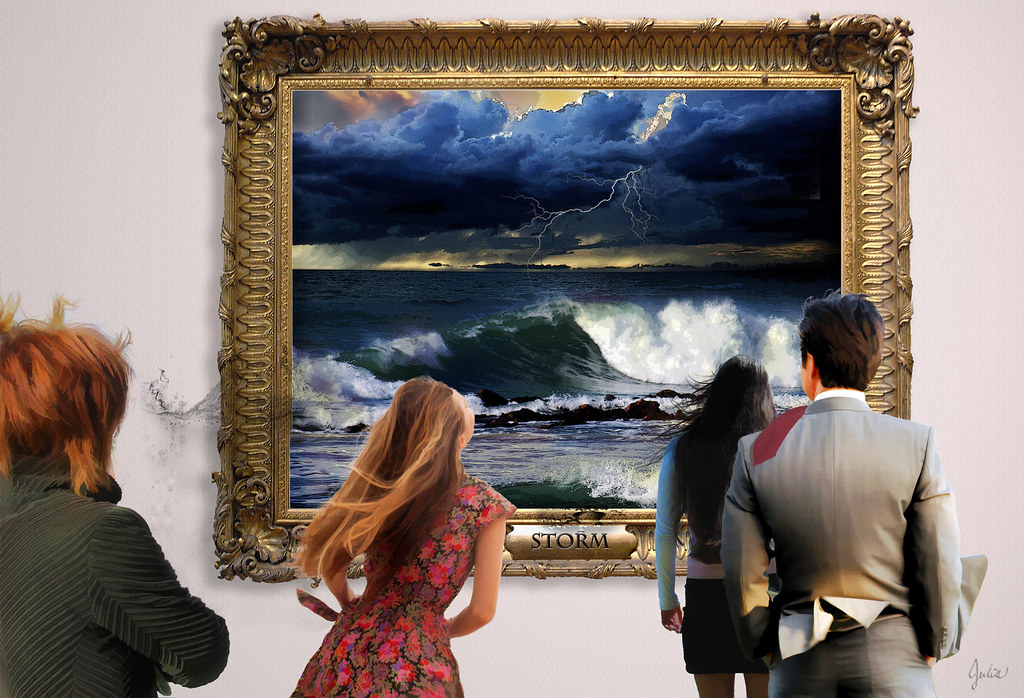
Storm My February Illustration Friday is a kind of two-fer.  First I created the painting, joining two photos from stock.xchange and using both Photoshop and Topaz filters on several copies.  The ornate frame came from the Frames and Borders group on Flickr. And the lightning is from a set of 40 lightning bolt brushes downloaded from psdbox.com.

Then once you have a painting, well, it should hang in a gallery, shouldn't it?  And, of course,  you need some viewers to appreciate it.  So I collected some individuals from Flickr via Creative Commons and removed them from their backgrounds using a trial version of Topaz ReMask.  I didn't take much time to learn its intricacies, as my goal was to get this finished, so they aren't as good as they could be.  I wanted to create the impression that their hair and garments were being blown by a wind coming out of the painting.  I added a little splash of water also coming out of the painting onto the wall, but I'm not sure if it reads as such.  I used Topaz BuzSim filter on one copy of the group of people to try to unify them.

After spending the better part of two days glued to my computer, I just managed to finish this in time.  It was a bit complicated, but it does resemble the vision I had in my mind's eye.

Thursday, January 31, 2013

Illustration Friday - Wings

One goal for 2012 that I succeeded in fulfilling was monthly participation in Illustration Friday. (Yeah!)  And it's my firm intention to continue doing so this year.  Thinking of all the ways a topic can be interpreted and then trying to get an idea, a vision that's interesting and not clichéd as well as interesting to execute really revs up the ole creative apparatus.

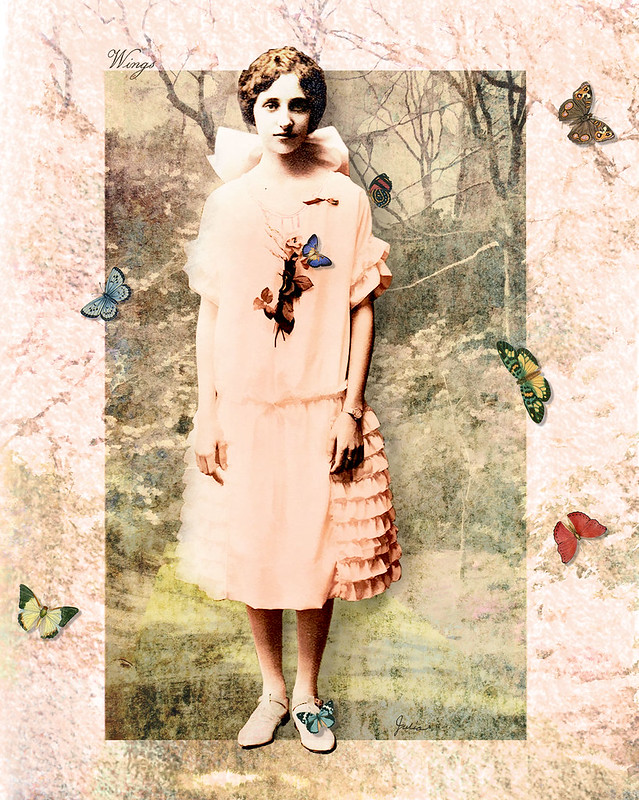
Fortunately, there aren't any topic police (and some submissions to IF have a very tenuous connection to the topic), because, as you can see, the "wings" in my illustration here are more or less gratuitous.  Or perhaps merely decorative would be a kinder way to put it.  I labored on a totally different concept for more than a day, finally concluding that it wasn't working and I didn't like it.  This one sort of evolved, starting with the young woman who came out of a vintage photograph from The Graphics Fairy, the best site I've found for vintage graphics and illustrations.  After making a composite of several layers of her, with different filters and blend modes, I started searching Lost and Taken for a textured background.  At this point I was simply involved in the image that was evolving, no longer focusing on "wings," although there were a couple of random butterflies left over from my previous abandoned attempt.  Then the next day I thought of adding a landscape to the background, and after much experimentation with effects, I was pleased with the result.

I couldn't let all that time and effort go to waste, could I?   So I threw in a few more butterflies, with drop shadows, of course. (When in doubt, add drop shadows.)  And, voilà, Wings!

Wings

Wednesday, January 9, 2013

A new year of reading

Yesterday evening as the rain pattered outside, ten of us gathered round one of the long wooden tables at La Madeleine Cafe to discuss the first book of the year, City of Thieves, by David Benioff.  As I mentioned last year when I first introduced the bookgroup, we are a very diverse group of women brought together by a love of reading, and I find we share many values while the diversity ensures piquancy in our discussions.  I look forward every month to our talk of literature and life. 

For anyone who might like to join us (in person or virtually) here is our slate for 2013.  (Our name is slightly misleading; we read not only books by foreign authors, but also about foreign places or cultures. Thus, our next selection, Cleopatra, by American Stacy Schiff  takes us to ancient Egypt and Rome.)


Tuesday, January 1, 2013

Passion Flower scarves

Mr. C and I are in agreement on making gifts.  We both get a lot more pleasure out of creating than we do shopping, and our hope is that the recipient will appreciate having a one-of-a-kind, made-for-her (or him) item.  So, impassioned as I am at the moment with dyeing and surface design, I set about to dye and print a pair of scarves for two long-time friends (who are states apart so there will probably never be the chance of them appearing together wearing something nearly identical). 
The passion flower was plucked out of one of E.A. Seguy's beautiful Art Nouveau designs from an old Dover Book.  Then, unlike the previous two scarves which were more or less extemporary in composition, I used Photoshop to design the scarf which let me try out elements and ideas.  Over the base color is a motif from Dover Books Chinese Stencil Designs which I hand-cut out of the tablecloth vinyl that I discovered works so well for silkscreening.  The rounded rectangles under the flowers were also cut of the vinyl and silkscreened. The passion flower motif consists of three stencils: one for the petals, one for the stamens and one for the leaves. Lastly are the little "sprinkles" which I found in Photoshop's Shape menu. 

I printed each of the rayon scarves with Procion fiber reactive dye in a different order to see what difference it might make.  To begin, I stenciled the blossoms on both scarves with a resist so that they would remain white.  Then on the scarf with the little black border, I stenciled the leaves, stamens and some of the sprinkles before painting on the background color over which I silkscreened the Chinese stencil design and then the rectangles, followed by some additional sprinkles and the border.  On the second scarf, after stenciling on the petals with resist, I then painted on the background, silkscreened the Chinese stencil motif and then the rectangles.  After that I washed the scarf (because the dye mixed with the print paste builds up), then stenciled on the leaves, stamens and all the sprinkles. The difference was negligible in terms of the final outcome, but it was definitely easier to stencil the complete flower first before the fabric gets pulled and stretched and squeezed during the various processes.
 
I didn't quite achieve my design in terms of colors. The wet color looks so much darker than when it dries, so I need to be a bit bolder when mixing it.  For example, the rectangles are each a different blue, but they are so light on the scarves as opposed to the design, that you really can't tell.  And the Chinese stencil doesn't make very much contrast with the background, especially on the first scarf.  On the second scarf I changed the colors slightly, making the leaves a bluer green, the stamens dark cobalt instead of black, and the sprinkles a combination of cobalt and green.


That's it...much easier said (or written about) than done, that's for sure.  But tremendously interesting to do.  And isn't making something yourself so satisfying, especially when it turns out close to what was in your mind's eye?  And, of course, the way to achieve that is to just...keep doing it, keep trying, keep learning.  So, on this first day of a fresh new year, I wish all of you other crafters out there a joyous year of creating.   For anyone else who yearns to dye or sew or paint or whatever, what are you waiting for?  You will most probably surprise yourself while having a very good time in the process.

Thursday, December 13, 2012

Illustration Friday - Explore

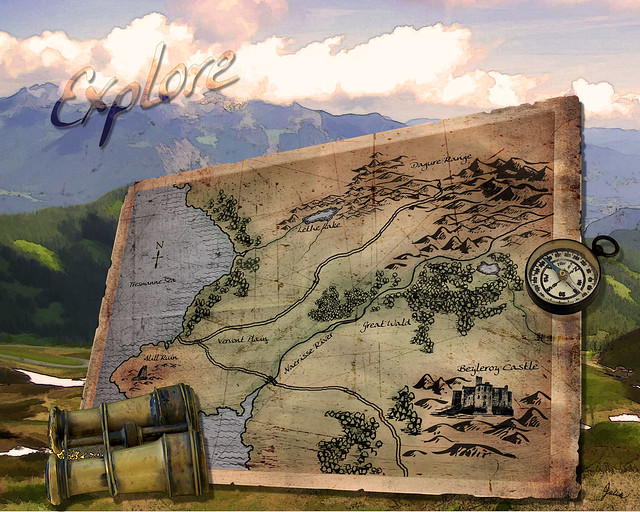
Explore In the course of illustrating this topic, I discovered and explored a whole new world that I had no idea existed: fantasy map making. Just Google "fantasy maps" to see an incredible variety. This simple map took hours to do, several of which were spent perusing the many online resources, such as Cartographer's Guild.  That's where I found a link to a tutorial on creating a realistic coastline. And all those hills and mountains, trees and the couple of lakes – made with free Photoshop brushes downloaded from Deviant Art.  Now, the castle and the ruin are my own handiwork, created from photos and reduced to icon size.  The map "paper" is from Lost and Taken which offers a wonderful selection of textures, also for free.  The distressing brushes used on the map were downloaded a few years ago, so I no longer know their origin, but they are so useful.

The rest of the composition was done a bit hurriedly since time was running out.  The mountain scenery as well as the binoculars and the compass were found on stock.xchng, my favorite hunting ground for free photos. I used Topaz Simplify filters on the mountain photo with a warming Photo Filter layer to bring the tone more in line with the map.  The compass and binoculars were simply cut out from their background, with a Find Edges filter on a duplicated layer above, set to Multiply.

I try to use my Illustration Friday submissions to learn and do something different each time. Making a map certainly was that!

Monday, December 10, 2012

Leaf silhouettes

This time of year I can't resist plucking particularly enticing leaves from the rich panoply of shapes and colors strewn on the sidewalk.  Then I tuck them into books where I come across them months later, brown and brittle.  I always think that I will do something creative with them, but what?

Here's one idea that I found on Pinterest, but instead of using paint, I did it the non-messy way: digitally. It's so easy, and here's how to do it.  I'm using Photoshop CS3, but I'm sure you can do the same in any similar program. .

First scan in each of your leaves.  Next, create a new file whatever size you want for your finished composition.  I made mine 8"x10" with a 150 pixels/inch resolution.  Now, on each scan, select the leaf; it's easiest to first select the white background and then inverse your selection.  You'll probably also have a tiny bit of shadow around parts of your leaf which you'll need to remove from your selection.  (I used the lasso tool.)  Then just drag your selected leaf over to your newly created file. Each leaf will be on a separate layer. You can then arrange them in any order that you wish by moving the layers above or below each other.  And you can rotate the leaves, even resize them.

Once you have the composition that you like, select all the leaves by holding down Shift & Ctrl while you click each layer.   Now, go to the Select menu, choose Save selection, name it and click OK.  Do all this again, omitting the bottom leaf; save and name that selection.  Continue to repeat this procedure, each time omitting the next leaf in your stack.  Then select, save and name your top leaf.  At this point, you can delete the leaf layers, if you wish, or simply turn them off.

Finally you're ready to start having some fun! First create a new empty layer on top of the white background layer.  Next, load the selection that contains all of the leaves and then INVERSE the selection.  With your brush tool selected, choose Airbrush soft round from the tool drop-down bar.  Set the opacity to around 30% and the flow about the same.  Choose a foreground and a background color.  I started with a golden yellow and an orange.  In the brush palette, you can check Color Dynamics and move your Foreground/Background jitter to around 50%, and the same with your Hue jitter and Saturation jitter.  This will just give you more variation in the color you put down.  Increase your brush size to 300 pixels or above and sweep around the outline of the leaves.  At this point all of the leaves will remain white; you are only painting the background.  When you're satisfied with how that looks, deselect your selection.

Load your next selection which does not include the bottom leaf, and remember to INVERSE the selection.  You will now be painting OVER the bottom leaf and around the outlines of the other group of leaves.  I reduced the opacity of my brush and changed my colors slightly.  Remember, if you don't like something you can undo it, or skip several steps back in the History palette.  Or in the History palette, you can make a snapshot each time you've finished a step and are happy with the result.
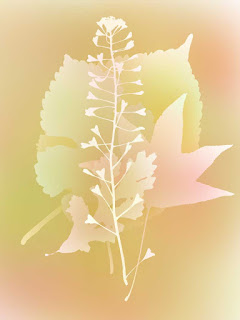
Continue loading and painting around each selection of leaves until you have only the final one on top; just go over that very lightly with your brush.  I actually did this four different times on separate layers, changing my colors a bit  each time.  I played around with various blend modes on those four layers but finally left them all at Normal.  Because none of the layers were totally opaque, all together they added richness to the color.  And that's the result you see right here. Then on one of the layers, more or less by accident, I added a drop shadow which created the unexpected effect you see above.  And I changed the blend mode on the layer beneath it to Dissolve.

Which just goes to show how much variation you can achieve with this basic technique.  So collect some leaves, scan them in, and experiment away!  (And, in conclusion, may I say that I had no idea how difficult it is to write a simple Photoshop tutorial. I hope I've made it clean enough.)

Wednesday, December 5, 2012

Scarves - up to my neck in dye


The dyeing and printing go on. I even bought a mini-fridge in which to keep my dye concentrates, as they were usurping the condiments' space in the kitchen refrigerator. I might reach in and pull out a container of #9 scarlet when I actually wanted red wine vinegar. So the purchase of the mini-fridge seals my commitment to continue. In fact, I liked the results of my last two tank tops so much that I thought I would try to duplicate them on rayon scarves. I thought that I had learned enough about what I did that I could duplicate them.  Ah...not quite.

Nevertheless, it was instructive (as well as frequently frustrating), and now I'm ready to move on to some different motifs, colors and techniques. I can hardly wait to see what comes about, since my novice efforts don't seem to render what I envision at the start.  But that does make it interesting.